Who this is for: transition leads.
A service is the thing being transitioned — one application, platform or capability. Everything else in the app hangs off it: the assessment, the gate decision, the plan, the ELS period.
Open your Jira project and choose Service Transition & Readiness in the project sidebar. You land on the page headed Transition Hub.
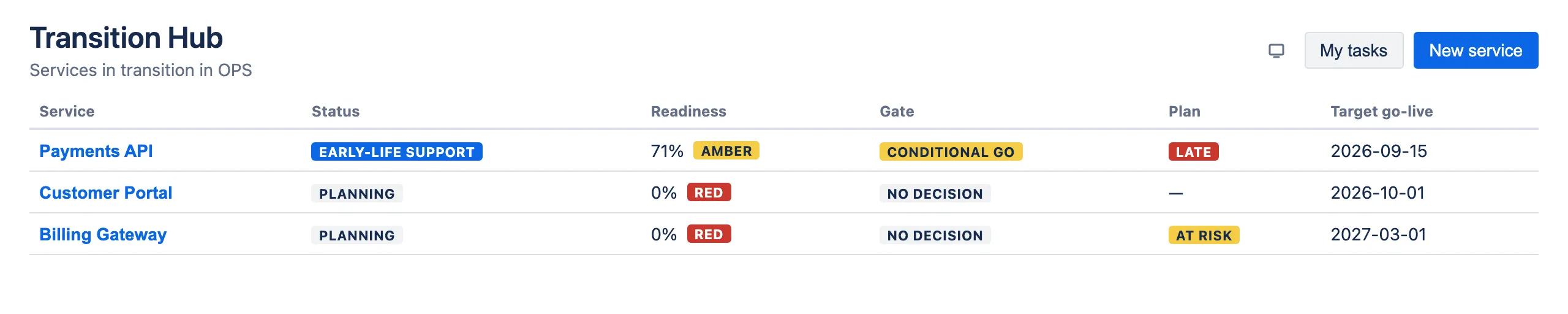
Rows are ordered by target go-live, soonest first, so what needs attention is at the top. Services with no target date sort to the bottom.
Click a service name to open it. (The whole row is clickable too, but the name is the keyboard-reachable control.)
The detail view has a ← All services back link, a header showing status, gate decision, target go-live and any linked issue, and three tabs — Readiness, Plan and ELS — covered in guides 03 to 05.
Creating a service
Click New service.
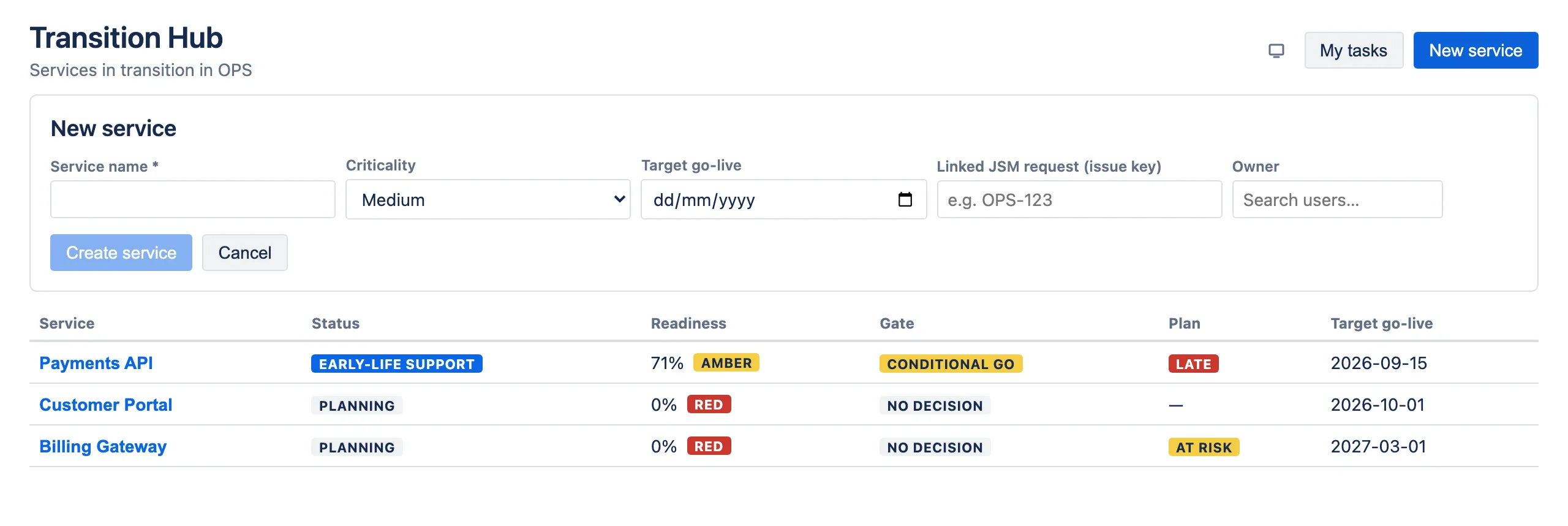
| Field | Required | Notes |
|---|---|---|
| Service name | Yes | How it appears everywhere else. Up to 255 characters. |
| Criticality | No | Low / Medium / High / Critical, pre-set to Medium. Informational — it does not change scoring or gating. |
| Target go-live | No | Feeds plan health. See below. |
| Linked JSM request (issue key) | No | A Jira issue key such as OPS-123. |
| Owner | No | Search by name. Leave it blank and you become the owner. |
Click Create service. It starts in Planning status.
You do not have to fill everything in now. Name alone is enough — the rest can be added later with Edit.
How the target go-live date behaves
Once the date has passed with work still open, the plan is Late. But plan health is a stored value, recalculated only when the plan or one of its tasks is next saved — nothing recomputes it on a timer or when you open the page.
So a date that passed overnight will not turn the hub red by itself. It shows up the next time somebody touches the plan. Editing the date on the service does not trigger a recalculation either.
Why link a JSM request
Service Readiness is available on every Jira issue — someone opens it from the issue’s actions and it appears above the Activity section. On an issue with no service linked it says “No transition service is linked to this request yet.” Linking changes it to show this service’s readiness score, RAG band, per-category breakdown and latest gate decision, including who decided and when.
That is the real reason to link: it puts the readiness picture where people who never open this app can find it.
Linking also lets a gate decision post a comment to that ticket (see 03 · Readiness & gates).
The panel carries an Open in Transition Hub button. Be aware it lands on the project’s apps list rather than on the service itself — you still pick the service from the hub.
On the key format: only the shape is checked — a letter, then letters,
digits or underscores, a hyphen, then digits (OPS-123). The app does not
confirm the issue exists, so a typo like OSP-123 saves happily and simply
never matches anything.
Editing a service
Open the service and click Edit in the header. The same five fields as creation, in a dialog.
Editing a service never affects its assessment, gate history or plan.
Status: what moves it
| Status | Set when |
|---|---|
| Planning | The service is created. |
| In transition | The first readiness assessment is started. |
| Early-life support | An ELS period is started. |
| Live | Handover sign-off is recorded. |
| Archived | You archive the service. |
Creating a plan and recording a gate decision do not change the status.
Archiving a service
Open the service and click Archive. Confirm when prompted.
Archiving hides the service from the hub and the portfolio. It does not delete anything: the assessment, every gate decision, the plan and the ELS record are all retained.
Archiving requires Jira project administrator permission. Without it the action fails with “Project administrator permission is required”.
Archived services can be listed again in the portfolio by setting the Status filter to Archived — but you cannot reopen one from there. The project hub excludes archived services from its list, and the portfolio’s service link lands on that project’s Transition Hub rather than on the service. Treat archiving as one-way in this release.
My tasks
Click My tasks in the hub header to switch from the service list to every plan task assigned to you in this project.

Rows are ordered by due date, undated last. Tasks on archived services are excluded. The app reads at most 500 of your tasks before narrowing them to this project, so on a very large site the list can be shorter than your real total.
Clicking a task name opens that service on the Plan tab, where the task actually is.
Click All services to switch back.
When the licence is inactive
New service, Edit and Archive are all disabled, and a banner explains why. The hub still lists everything and every number stays visible.
Working across several projects
The hub shows one project, and My tasks is scoped to that project too. To see everything at once, use Transition Portfolio in the top-level Apps menu — see 06 · Portfolio & reporting.